Running on NVIDIA Brev
This page walks through urdf2vla on a cloud GPU from NVIDIA Brev, from a fresh instance to a trained model. Every number on it was measured on one instance: an NVIDIA L40S (46 GB), 8 CPUs, 144 GB RAM, Ubuntu 22.04, with the FANUC CRX-3iA example.
urdf2vla doctor checks each point below. When something is wrong, it prints the fix and links to the section here.
Run it after every step of the setup:
What you need before you start
| Instance | One GPU with 44 GB or more to train on the instance itself (L40S, A100, H100). Smaller GPUs can run everything except training |
| Disk | 300 GB or more on the disk that holds Docker's images and the repository (see Disk) |
| Hugging Face | An account, a token with read access, and the license of nvidia/Cosmos-Reason2-2B accepted (see Hugging Face) |
| Time | About 30 minutes of setup, 35 minutes of recording, 2 hours per training run |
Set up with one script
On a fresh instance, one script does sections 1–4 of this page and starts both containers. Run it as the user you log
in with (it uses sudo where it needs to):
curl -fsSL https://raw.githubusercontent.com/momoiorg-repository/urdf2vla/main/docker/brev_setup.sh -o /tmp/urdf2vla_brev_setup.sh
bash /tmp/urdf2vla_brev_setup.sh
The script clones the repository itself, onto the disk with the most free space. If you've already cloned it, run
bash docker/brev_setup.sh in it instead: it uses that checkout where it is, and warns if its disk is too small for
training checkpoints (24 GB each).
| Step | What the script does |
|---|---|
| Driver | Below 580: releases Brev's holds, pins the 580 branch, installs 580 and reboots. After the reboot, setup continues by itself |
| Disk | If the system disk has less than 130 GB free and a larger disk exists, moves Docker's storage there (keeping the nvidia entries in /etc/docker/daemon.json). The repository goes on the larger disk too, linked from ~/urdf2vla |
| CDI | Generates /etc/cdi/nvidia.yaml and checks that a container sees the GPU |
| Build and start | Adds you to the docker group, installs uv and the urdf2vla command (.venv), runs docker/build.sh and docker/run.sh for both containers, then urdf2vla doctor |
It takes about 30 minutes, longer if the driver needs upgrading. The setup runs as a systemd service, so it keeps going if your SSH connection drops. To follow it:
bash ~/urdf2vla/docker/brev_setup.sh --status   # where it is, and what to do next
tail -f /var/log/urdf2vla-setup.log              # everything it prints
When you log in, the status is shown; once setup is done, the login also moves into the repository and activates
.venv. If a step fails, the log says which one. Fix the cause (the sections below explain each step) and run the
script again: it continues from the step that failed.
Then do Hugging Face: accept the license and run hf auth login, or pass the token to the script
with HF_TOKEN=hf_... bash /tmp/urdf2vla_brev_setup.sh (it's saved to ~/.cache/huggingface/token and never printed).
Accepting the license stays a step in the browser. Continue with the tutorial.
Note
docker/run.sh starts the simulation container with ACCEPT_EULA=Y, as it does on your own machine: using it means
accepting the license of the Isaac Sim image (see
Isaac Sim's container installation).
A Brev Launchable
A Launchable is a saved instance configuration that runs a setup script when someone deploys it. Brev bills the account that deploys it. To make one that runs the script above, create it in the Brev console with these settings:
| Setting | Value |
|---|---|
| Mode | VM mode, no Jupyter |
| Setup script | Paste the script below |
| Compute | One GPU with 44 GB or more (we measured on an L40S) |
| Disk | 300 GiB or more. Brev can't resize the disk later |
| Secure Link | Port 8080, for urdf2vla view. Don't open 8080 as a plain TCP port: the viewer has no login |
| Setup value (optional) | HF_TOKEN, from a saved organization secret. Don't put a token in a default value |
#!/bin/bash
# urdf2vla: https://github.com/momoiorg-repository/urdf2vla (docs/guides/brev.md)
export URDF2VLA_REF=main
curl -fsSL "https://raw.githubusercontent.com/momoiorg-repository/urdf2vla/${URDF2VLA_REF}/docker/brev_setup.sh" -o /tmp/urdf2vla_brev_setup.sh
bash /tmp/urdf2vla_brev_setup.sh
The script clones the repository at URDF2VLA_REF; use a release tag instead of main so every deployment gets the same
version. Brev runs a setup script once and doesn't run it again after a restart, which is why the script carries on
after the driver reboot as a systemd service. Brev may show the setup as finished or interrupted at that reboot.
Check with --status after logging in.
The sections below are what the script does, step by step. Follow them to set up by hand, or when the script stops at a step.
1. Driver 580 or newer
Isaac Sim 6.2 and the GR00T image need driver 580 or newer. With an older driver, the first Isaac Sim step stops
with The NVIDIA driver on your system is too old (found version 12070): the image's PyTorch is built for CUDA 13.
Check with nvidia-smi. If the driver is older, the fastest fix is to pick an instance image with a newer driver.
To upgrade in place (our instance came with 565.57.01):
# Brev holds the installed driver; release the holds (also on nvidia-modprobe, nvidia-settings, nvidia-prime)
sudo apt-mark unhold $(apt-mark showhold | grep -E 'nvidia|cuda-drivers')
# keep every driver package on the 580 branch (otherwise the CUDA repository mixes in a newer branch)
apt-get download nvidia-driver-pinning-580 && sudo dpkg -i nvidia-driver-pinning-580_*.deb
# remove the old driver, install 580 (the kernel module is built with DKMS)
sudo apt-get purge -y $(dpkg -l | awk '$1 ~ /^[ih]i$/ && $2 ~ /565/ {print $2}')
sudo apt-get install -y nvidia-driver-580-open nvidia-utils-580 nvidia-compute-utils-580
sudo reboot
After the reboot, nvidia-smi shows 580, and you must regenerate the CDI spec (next section).
2. GPU access from Docker (CDI)
The NVIDIA Container Toolkit on Brev runs in CDI mode: docker run --gpus all uses a description of the GPU in
/etc/cdi/nvidia.yaml. On our instance that file was missing, and docker run --gpus all failed with:
could not apply required modification to OCI specification: error modifying OCI spec:
failed to inject CDI devices: unresolvable CDI devices nvidia.com/gpu=all
Generate it:
sudo nvidia-ctk cdi generate --output=/etc/cdi/nvidia.yaml
docker run --rm --gpus all ubuntu nvidia-smi        # should print the GPU
- With a driver older than 580,
nvidia-ctkcrashes (free(): invalid pointerinnvSandboxUtilsShutdown). Add--feature-flag=disable-nvsandboxutils. - After a driver upgrade, generate it again. The file names the driver's library versions, and it was not refreshed by itself after our upgrade.
3. Docker's storage on the large disk
Brev instances have a small system disk (124 GB on ours) and a large one under /data (295 GB). Put Docker's images
and the repository on /data:
# Docker: add "data-root": "/data/docker" to /etc/docker/daemon.json (keep the nvidia runtime entries), then
sudo systemctl restart docker && docker info | grep "Root Dir"
# repository
cd /data && git clone https://github.com/momoiorg-repository/urdf2vla.git
What takes the space (measured):
| Images | Isaac Lab Arena 38 GB, GR00T 26 GB (plus a 26 GB base image that shares its layers). About 64 GB, plus up to 50 GB of build cache (docker builder prune frees it) |
| Dataset | 50 FANUC demos: 2.6 GB (HDF5), 61 MB converted |
| GR00T models | 6.5 GB (nvidia/GR00T-N1.7-DROID) + 4.6 GB (nvidia/Cosmos-Reason2-2B) in ~/.cache/huggingface |
| Checkpoints | 24 GB each (11 GB weights + 13 GB optimizer state). train_vla keeps 2 by default (--save-total-limit) |
Checkpoints are the part that runs out. With 5 kept per run, two runs filled the 295 GB disk and the second one
died while saving. train_vla now refuses to start when there isn't room for its checkpoints. To free space after a
run, delete optimizer.pt from finished checkpoints: it's only needed to resume training, and the weights stay
usable for evaluate_vla.
4. Build and start
uv venv .venv && uv pip install -e '.[view,dev,docs]' xacro && source .venv/bin/activate
bash docker/build.sh            # Arena image 13 min, GR00T image 4 min on the L40S
bash docker/run.sh && bash docker/run.sh gr00t
urdf2vla doctor
Run docker/build.sh in a way that survives your SSH session ending (tmux, or setsid nohup … &): the build
stops if the shell that started it exits.
5. Hugging Face
GR00T N1.7 uses the vision-language model nvidia/Cosmos-Reason2-2B, which is gated: training and evaluation
stop with 401 Client Error … Cannot access gated repo until you have access.
- Open huggingface.co/nvidia/Cosmos-Reason2-2B and accept the license.
- Create a token with read access at huggingface.co/settings/tokens.
-
Log in on the instance (the token is saved in
~/.cache/huggingface/token, which the containers share):
Keep a copy of the token on /data (for example /data/secrets/hf_token, mode 600) if your instance's home
directory doesn't survive a stop, and copy it back to ~/.cache/huggingface/token afterwards.
6. Run the example
The steps are the same as in Bring your own robot. Measured on the L40S with the FANUC CRX-3iA:
| Step | Result | Time | Peak GPU memory |
|---|---|---|---|
import_robot (first run) |
10/10 checks, asks for the starting pose | 447 s (first start of Isaac Sim fills the shader cache) | 4.9 GB |
import_robot (after answer robot.default_pose=suggested) |
10/10 | 37 s | 4.8 GB |
launch_sim |
22/22 (cameras, objects, grasp holds) | 204 s | 5.5 GB |
setup_teleoperation |
4/4 | 64 s | 5.5 GB |
collect_dataset --device scripted --num-demos 50 |
50 of 59 attempts (84.7 %) | 33 min | 5.5 GB |
convert_dataset |
5/5 | 68 s | – |
convert_dataset --layout droid |
6/6 (100 episodes: each demo with the left and the right camera) | 3 min | – |
train_vla (urdf2vla layout, 3 cameras, 10,000 steps, batch 32) |
release check 10/10 | about 2 h 40 min (1.07 steps/s) | 41.9 GB |
train_vla (--layout droid, 2 cameras) |
release check 10/10 | 2 h 8 min (1.38 steps/s) | 40.9 GB |
evaluate_vla --episodes 20 --video |
see Results | 10–11 min | 12.4 GB |
Training and evaluation don't fit on the GPU at the same time (41 GB + Isaac Sim + the inference server). To
evaluate a checkpoint while another training runs, stop the training right after it saves a checkpoint, evaluate,
and run the same train_vla command again: it resumes from the last checkpoint.
Before a 30-minute evaluation, check that the model releases the gripper (about a minute, no simulation):
urdf2vla train_vla --project projects/crx3ia --dataset demos_droid --check-only training/crx3ia_demos_droid/checkpoints/checkpoint-10000
Results
Both models were fine-tuned from nvidia/GR00T-N1.7-DROID (the default for single-arm robots) on the same 50 scripted
demos, and evaluated on the same 20 episodes (same seed: random object and position each episode).
| urdf2vla layout (default) | --layout droid |
|
|---|---|---|
| Cameras the model sees | wrist + left + right | wrist + one exterior (training: left or right per episode; evaluation: left) |
| Arm state and actions | 6 joint targets | DROID's end-effector pose + 7 joints (the 7th padded) |
| Success | 20/20 | 19/20 (one pear never released) |
| Apple / cube / lime / pear | 5/5, 7/7, 3/3, 5/5 | 5/5, 7/7, 3/3, 4/5 |
| Median episode | 174 steps (8.7 s) | 173 steps |
| Median distance from the target | 15 mm | 12 mm |
The 3-camera model is on Hugging Face:
umegan/urdf2vla-crx3ia-gr00t-n1.7 (NVIDIA Open Model
License; its model card shows how to evaluate it with urdf2vla).
Use the default urdf2vla layout (all cameras, convert_dataset without --layout). It was as good or better,
and every frame shows the model all three views. The DROID layout trains about 30 % faster; keep it for experiments.
A first DROID-layout model trained on episodes that ended 13 steps after the gripper opened scored 0/3: it grasped
and carried every object to the bin but never let go. convert_dataset now holds the final frame so the release
is learned, checks it (gripper_timing), and train_vla checks the trained model before you evaluate it
(release_check: 0/10 for that model, 10/10 for both models above).
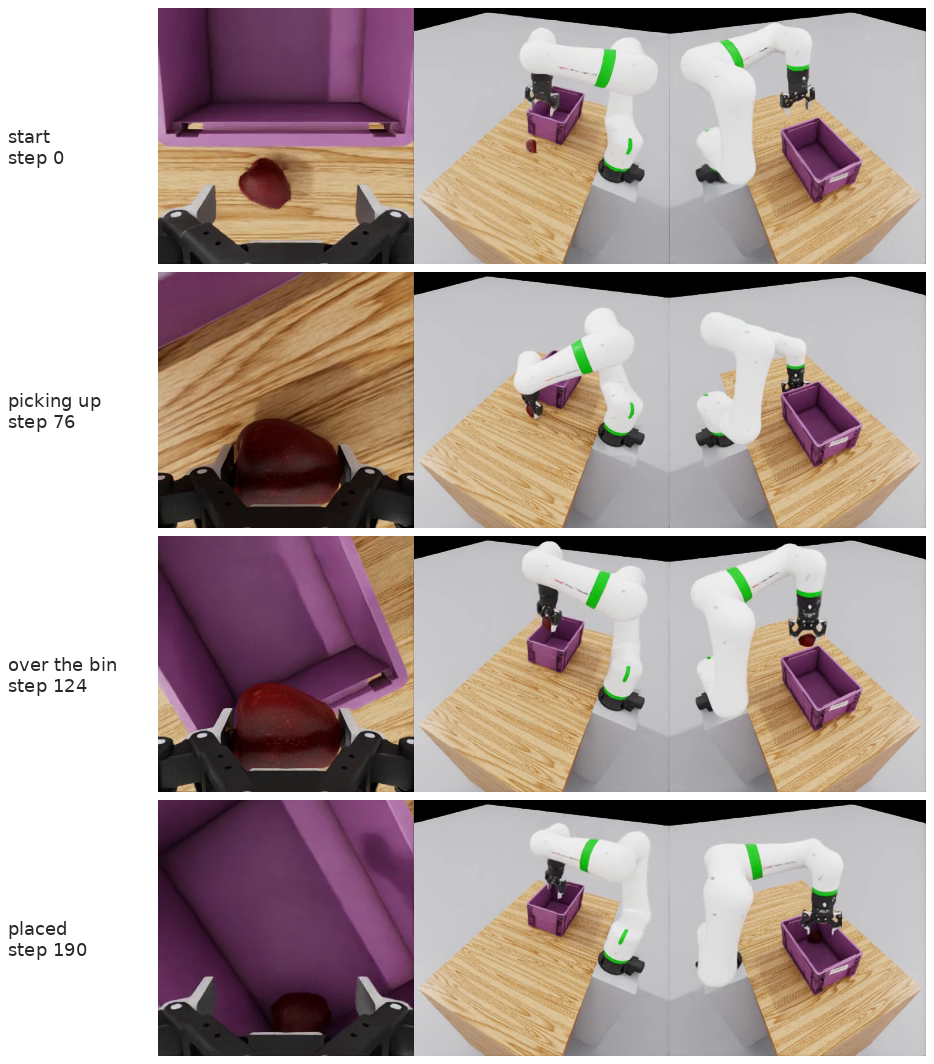
Videos and images of the evaluation: Trained models.
The GR00T server port
Brev runs NVIDIA DCGM, whose nv-hostengine listens on 127.0.0.1:5555, the GR00T inference server's default
port. evaluate_vla moves to the next free port by itself and says so in its warnings; doctor reports it as info.
Viewer and teleoperation over SSH
urdf2vla viewserves on port 8080:ssh -L 8080:localhost:8080 <instance>and openhttp://localhost:8080.- Record with the terminal keyboard:
collect_dataset --device socketin one SSH session andurdf2vla teleop-keysin a second one.